Ktor-E-Commerce
Ktor-E-Commerce is a high-performance backend solution designed for e-commerce applications built with ktor. This backend leverages the power of Kotlin to provide a robust, scalable, and efficient service for handling your e-commerce needs.
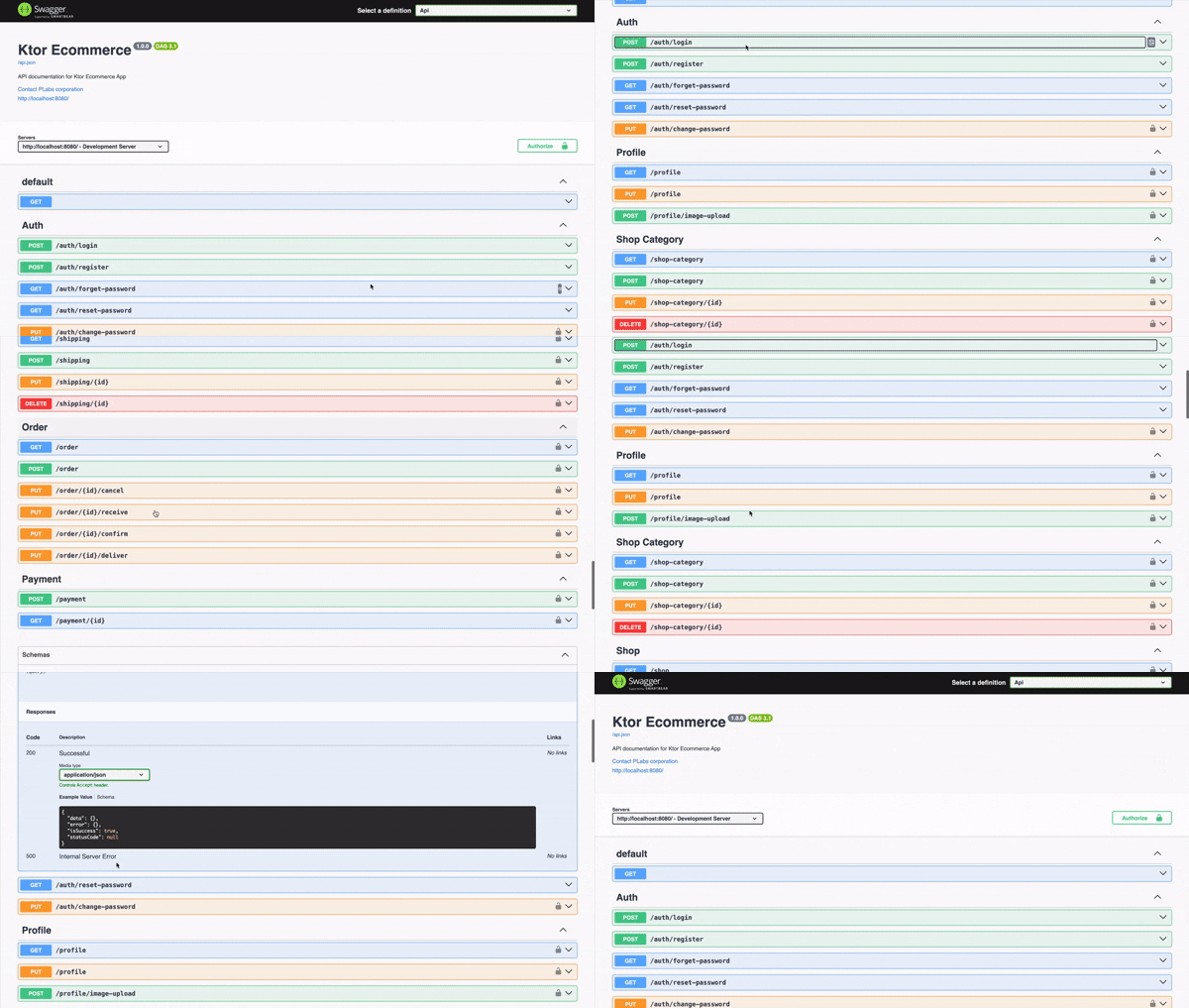
Swagger View & API Discovery
Access interactive API documentation at the root / or /swagger endpoint when the application is running. The root URL automatically redirects to Swagger for easy API discovery for frontend developers and testers.
Features
1. Role-Based Access Control
- Customer Role: Shoppers with basic access to browse and make purchases.
- Seller Role: Vendors can list products and manage their inventory.
- Admin Role: Administrators have full control over the platform.
2. User Accounts and Authentication
- User Registration: Allow customers to create accounts. Users can register with the same email for different roles (customer and seller).
- User Authentication: Implement JWT-based authentication for user sessions.
- User Profiles: Enable users to view and update their profiles.
3. Product Management
- Product Listings: Create, update, and delete product listings.
- Categories: Organize products into categories and brands for easy navigation.
- Inventory Control: Keep track of product availability and stock levels.
4. Shopping Cart and Checkout
- Shopping Cart: Add and remove products, update quantities, and calculate totals.
- Checkout Summary: Retrieve detailed checkout summary with subtotal, shipping, tax, and discount breakdown.
- Checkout: Consolidated checkout process with integrated shipping address and method selection.
- Cart Clearing: Automatic cart clearing after successful order placement.
5. Order Management
- Order Processing: Handle order creation with human-readable order numbers (ORD-YYYYMMDD-XXXX).
- Order Status History: Comprehensive audit trail for every status transition.
- Automatic Taxation: Configurable tax calculation applied during checkout.
- Order Cancellation: Cancel PENDING/CONFIRMED orders with automatic stock restoration.
- Seller Orders: Sellers can view and manage orders from their shop.
- Admin Orders: Admins can view all orders with advanced filters (status, date range).
- Idempotency Support: Prevent duplicate orders with idempotency keys.
- Payment Integration: Secure payment processing with amount validation.
- Payment History: Track all payments for each order.
6. Discount & Coupon System
- Promo Codes: Create and manage fixed or percentage-based discount coupons.
- Usage Limits: Enforce expiration dates, usage limits, and minimum order amounts.
- Admin Controls: Dedicated administrative interface for managing the coupon lifecycle.
7. Refund Management
- Refund Requests: Customers can request refunds with reasons and evidence images.
- Refund Approval: Sellers and admins can approve, reject, or process refunds.
- Return Shipping: Track return shipments with tracking numbers.
- Refund Lifecycle: Complete refund tracking from request to resolution.
6. Scalability and Performance
- Asynchronous Processing: Leverage Ktor's async capabilities for high performance.
- Load Balancing: Easily scale your application to accommodate increased traffic.
7. Security
- JWT Tokens: Implement JSON Web Tokens for secure authentication.
- Refresh Tokens: Secure token refresh with hashed storage and automatic revocation.
- Rate Limiting: Auth endpoints protected against brute-force attacks (5 req/10min).
- Account Lockout: Automatic 30-minute lockout after 5 failed login attempts.
- Password Strength: Enforced password complexity requirements.
- Input Validation: Protect against common web vulnerabilities like SQL injection and cross-site scripting (XSS).
- Atomic Stock Operations: Thread-safe inventory updates within database transactions.
- Health Checks: Comprehensive health monitoring with
/health,/health/live, and/health/readyendpoints. - Structured Logging: Production-ready JSON logging with correlation IDs (Request IDs) for easier debugging and log aggregation.
8. Dashboard Analytics
- Summary Statistics: Quick overview of revenue, orders, users, products, and shops.
- Revenue Analytics: Detailed revenue breakdown with daily trends and average order value.
- Order Statistics: Order status distribution and recent order activity.
- User Growth: User registration trends with breakdown by role and daily signups.
- Top Products: Best-selling products ranked by sales volume and revenue.
- Activity Feed: Recent platform activity including orders and user registrations.
9. Audit Logging
- Action Tracking: Records every admin action with actor identity, action type, and target resource.
- Rich Context: Captures actor email, role, IP address, user agent, and outcome.
- Filterable Queries: Search audit logs by actor, action type, resource, or outcome.
- Immutable Records: Append-only log records for compliance.
Architecture
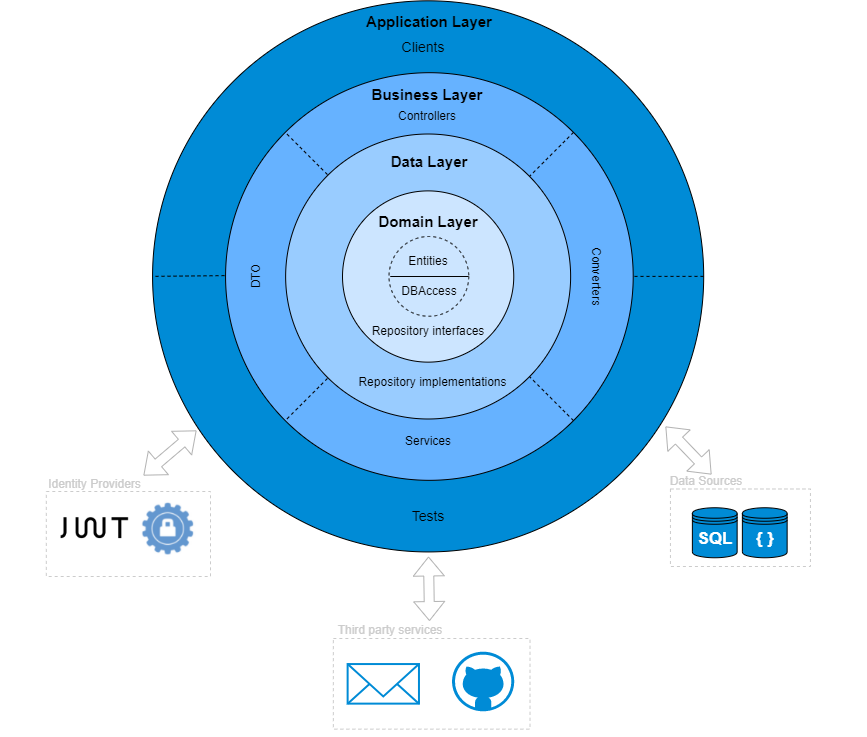
Fig. Onion Architecture
Requirements
- JAVA 11 (or latest)
- PostgreSQL (latest)
Clone the repository
git clone git@github.com:piashcse/ktor-E-Commerce.git
Environment Configuration
This project uses DotEnv for configuration management. Follow these steps to set up your environment:
- Create a
.envfile in the project root directory:
touch .env
- Add the following variables to your
.envfile:
   # Database Configuration
   DB_HOST=localhost
   DB_PORT=5432
   DB_NAME=ktor-ecommerce
   DB_USER=postgres
   DB_PASSWORD=p123

   # Server Configuration
   PORT=8080
   HOST=localhost

   # JWT Configuration
   JWT_SECRET=your-super-secret-jwt-secret-key-change-in-production
   JWT_ISSUER=ktor-ecommerce-app
   JWT_AUDIENCE=ktor-ecommerce
   JWT_REALM=ktor-ecommerce

   # Email Configuration
   EMAIL_HOST=smtp.gmail.com
   EMAIL_PORT=587
   EMAIL_USERNAME=your-email@gmail.com
   EMAIL_PASSWORD=your-gmail-app-password
- Update the values as needed for your environment, especially:
- Database credentials to match your PostgreSQL setup
- JWT secret with a strong, unique value for production
- Email credentials with your actual Gmail and app password
The .env file is included in .gitignore to prevent sensitive information from being committed to the repository.
Note: For email configuration, make sure to use a Gmail app password rather than your regular Gmail password. You can generate an app password in your Google Account settings under Security > 2-Step Verification > App passwords.
PgAdmin Setup
On Terminal
brew install --cask pgadmin4
Open PgAdmin
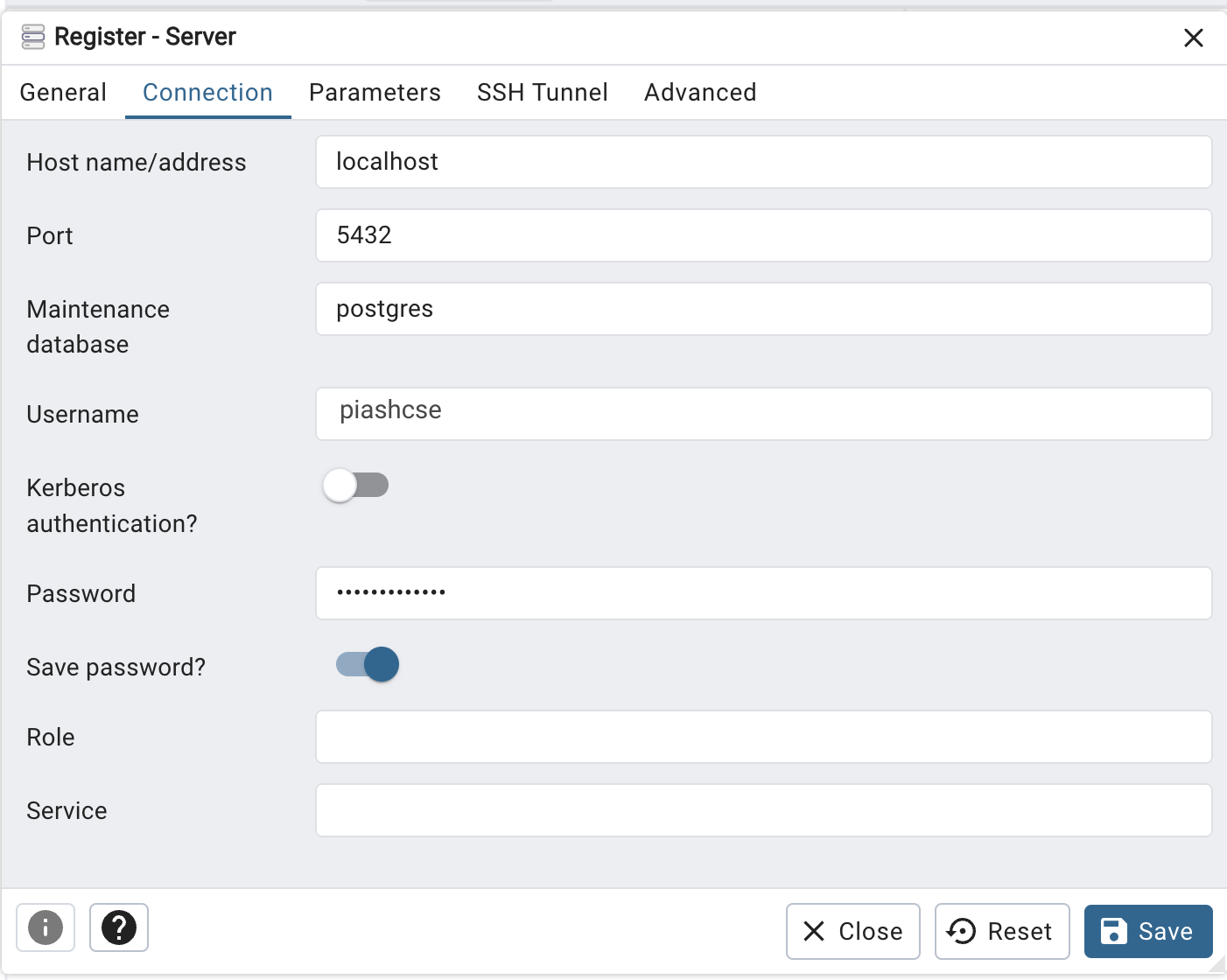
In the "Create - Server" dialog that appears, fill in the following information:
General tab:
- Name: Give your server a name (e.g., "Ktor Ecommerce App")
Connection tab:
- Host name/address: localhost (if your PostgreSQL server is on the same machine)
- Port: 5432 (default PostgreSQL port)
- Maintenance database: postgres (default database)
- Username: piashcse (the user you created for your application)
- Password: p123 (the password you set for piashcse)
📧 SMTP Email Setup
This project uses Gmail’s SMTP service to send emails (e.g., for password recovery). The email configuration is managed through environment variables in your .env file.
🔧 SMTP Configuration
Configure your email settings in the .env file:
EMAIL_HOST: SMTP server host (e.g.,smtp.gmail.com)EMAIL_PORT: SMTP server port (e.g.,587for TLS)EMAIL_USERNAME: Your email addressEMAIL_PASSWORD: Your email app password
Important: Use Gmail app passwords instead of your regular Gmail password. Generate an app password in your Google Account settings under Security > 2-Step Verification > App passwords.
API Documentation
For comprehensive API documentation, please refer to the following resources:
- Authentication API - User authentication and management
- Profile API - User profile management
- Product API - Product management
- Shop API - Shop management
- Shop Public API - Public shop features and admin operations
- Shop Category API - Shop category management
- Product Category API - Product category management
- Product Sub-Category API - Product sub-category management
- Brand API - Brand management
- Cart API - Shopping cart functionality
- Wishlist API - Wishlist functionality
- Checkout API - Consolidated checkout process and summary
- Coupon API - Discount and promo code management
- Order API - Order management and history
- Refund Request API - Refund lifecycle management
- Shipping Address API - User shipping address management
- Shipping Method API - Shipping method management
- Payment API - Payment processing
- Review Rating API - Product reviews and ratings
- Inventory API - Inventory management
- Privacy Policy API - Privacy policy management
- Privacy Policy Consent API - User consent tracking
- Dashboard API - Admin dashboard analytics
- Audit Log API - Admin audit log tracking
👨 Developed By

Mehedi Hassan Piash



License
Copyright 2023 piashcse (Mehedi Hassan Piash)

Licensed under the Apache License, Version 2.0 (the "License");
you may not use this file except in compliance with the License.
You may obtain a copy of the License at

    http://www.apache.org/licenses/LICENSE-2.0

Unless required by applicable law or agreed to in writing, software
distributed under the License is distributed on an "AS IS" BASIS,
WITHOUT WARRANTIES OR CONDITIONS OF ANY KIND, either express or implied.
See the License for the specific language governing permissions and
limitations under the License.